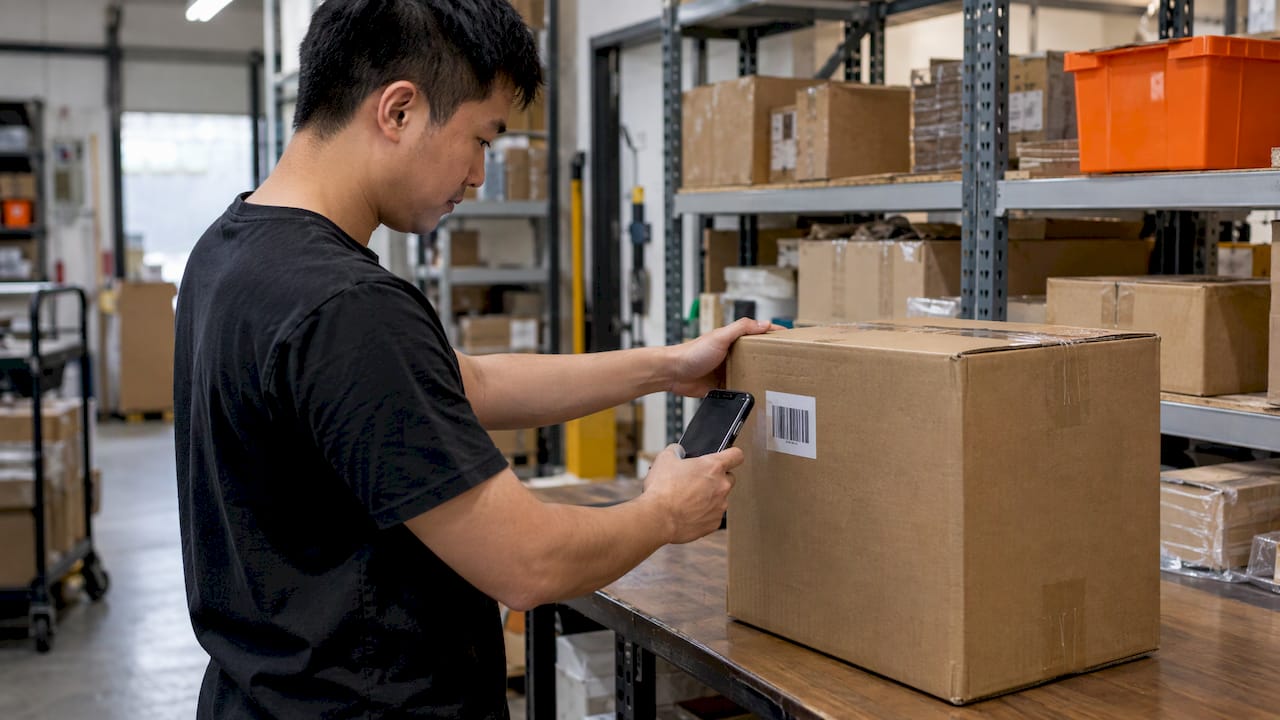
Barcode scanning in an app means a phone or handheld scanner reads a code and the app turns it into a record: a stock movement, a sale, a check-in or an asset audit. For most Singapore SMEs the right starting point is one workflow, one scan and one place the data lands, not a full system. We start by reviewing the workflow, then choose between a ready product, an adapted one or a custom build.
TL;DR
- A scan only helps if its data lands in the right place: the app must read the code, check it, and post it to your stock, sales or attendance records.
- There are three ways to connect scanning to existing software. Middleware or an API-based link is safer than writing straight into a database.
- Start with one count or one process, then widen. Most SMEs do not need to buy a scanner for every person on day one.
- Validation, offline handling and access permissions decide whether the data stays trustworthy.
- Scope the work before you pay for it: a workflow review should tell you whether a ready product, an adapted one or a custom app is the cheapest suitable route.
Table of Contents
- What barcode scanning in an app actually does
- Where scanning pays off for a Singapore business
- From scan to record: how the data travels
- Three ways to connect scanning to your existing software
- Phone camera or dedicated scanner?
- Keep the data accurate: validation and offline handling
- Access controls and traceability
- What it costs, and how to keep it down
- A practical plan for your first scanning project
- Our view: start with the workflow, not the scanner
- Talk to us about scanning in your workflow
- FAQ
- Sources
What barcode scanning in an app actually does
A barcode is a printed pattern that stands for an identifier, such as a product number, a pallet label or a shelf location. On its own it holds almost nothing. The value comes from the software that looks the identifier up and acts on it.
KEYENCE’s integration guide describes the system in three parts: something that generates the barcodes (a label printer), something that captures them (the scanner), and central software that links each identifier to product or transaction data. Each scan then creates a time-stamped transaction record, covering transfers, cycle counts and audit trails, and this cuts manual entry errors.
In an app, the “scanner” is often the camera of a phone or tablet your staff already carry. The app does four jobs:
- Reads the code.
- Recognises what kind of code it is and what it contains.
- Checks that the result makes sense.
- Sends it to the right record and tells the user what happened.
That last step, the one where data reaches your workflow, is what people mean by barcode scanner integration. It is also where most projects succeed or fail.
Where scanning pays off for a Singapore business
Scanning suits any task where someone currently types or writes down a code, a quantity or a name.
- Stock counts and receiving. Scan items as they arrive, compare against the order, and update stock. This is the most common first project.
- Retail and point of sale. Scan to ring up a sale or check a price. Large retailers are pushing this further: Stomp reports that FairPrice is trialling smart trolleys with touchscreens and barcode scanners at its Punggol Digital District outlet, letting shoppers pay without queuing at a counter.
- Asset and equipment tracking. Scan a label on a laptop, tool or machine to log who has it and where.
- Event check-in. Scan a ticket or registration code at the door.
- Attendance. Scan a staff badge instead of keeping a paper sheet.
- Order picking and dispatch. Scan the item and the location to confirm the right goods go into the right box.
A small business does not need the scale of a supermarket chain to benefit. The gain is the same: fewer mistakes, faster counts and a record you can trust. If inventory is your first target, our guide on barcode inventory tracking for SMEs covers what to do first, and starting with one count shows how to keep the first step small.
From scan to record: how the data travels
BarcodeFYI’s architecture guide lays out the flow in five stages: the scanner captures raw data, software identifies the type of barcode and extracts the fields, validation checks the data, a router sends it to the right system, and that system processes the transaction and responds.
In plain terms, a scan of a carton label might go like this:
- The camera reads the code.
- The app works out that it is a product code and a batch number.
- The app checks that the product exists and the batch is not already booked in.
- The app adds the quantity to stock in your inventory or accounting record.
- The screen shows a green tick or an error message the worker can act on.
For products labelled to the GS1 standard, the fields map neatly. BarcodeFYI’s ERP integration guide shows the GTIN (the global product number) mapping to the material or item number, the batch to a lot, and the expiry date to shelf life. It lists the scan-triggered transactions that follow: goods receipt, goods issue, transfer, production confirmation and physical inventory.
You may not use anything that formal. A simple internal code on a shelf label works if the app knows what it stands for. What matters is deciding, before building anything, what each code means and what should happen when it is scanned.
Three ways to connect scanning to your existing software
If you already run accounting, inventory or e-commerce software, the question is how scan data gets into it. Zebra’s integration guide separates three approaches.
| Approach | How it works | Strength | Watch out for |
|---|---|---|---|
| Screen or file based | The scan fills in a screen, or a file is exchanged and loaded | Quick to start, little technical access needed | Can be fragile when screens or file layouts change |
| API based | The app talks to your software through its official data-access routes | Cleaner and more dependable | Depends on what the software’s API allows |
| Direct database | The app writes straight into the database | Simple on paper | Risky, as it can corrupt data |
Zebra recommends middleware, a layer between the scanning devices and the main system, and notes that connecting devices straight to an ERP in real time can slow the ERP down. Its suggested pattern is to pull the purchase order from the system, receive goods against it with barcodes in the middleware, fix any issues, then return the completed document.
For an SME the practical reading is this: avoid writing straight into another system’s database, and prefer an API-based link where your software offers one. If you use Xero, QuickBooks, Shopify or a marketplace, check what each exposes before you promise a “real-time sync”. Our article on an API integration pilot for SMEs explains how to test such a link in a few weeks before committing to the whole thing. If you run more than one site, the one-site pilot approach to multi-location inventory sync keeps the risk low.
Singapore adds one more check if you invoice other businesses. Whatever tracks your stock should sit comfortably beside your invoicing, which is why we suggest checking InvoiceNow first when choosing inventory software.
Phone camera or dedicated scanner?
This is the question that drives hardware cost, so settle it early.
A phone or tablet camera suits light, occasional scanning: a weekly stock check, a quarterly asset audit, event check-in, or a shop-floor price check. Your staff already have the device, so there is nothing extra to buy, charge or lose.
A dedicated handheld scanner suits high-volume work, such as receiving many pallets a day, where each second per scan adds up and labels may be worn or hard to reach. KEYENCE notes that scanners can be set up to behave like a keyboard, so the code appears in whichever field the cursor is in, in an ERP or CRM, without custom drivers. That is handy when you want a scanner to work with software you already have.
A few practical points apply either way:
- Print quality matters. A smudged or low-contrast label fails on any device. Test your real labels, not a sample sheet.
- Choose the code type to suit the item. One-dimensional barcodes hold a short number. QR codes and other two-dimensional codes hold more and are easier to read at an angle.
- Think about the environment. Cold rooms, damp storerooms and busy loading bays wear labels and tire users faster than an office desk.
- Plan for line of sight. Barcodes need to be seen by the camera or scanner, so label placement should suit how people hold and handle the item.
A workflow review should tell you which group you fall into before you spend on hardware.
Keep the data accurate: validation and offline handling
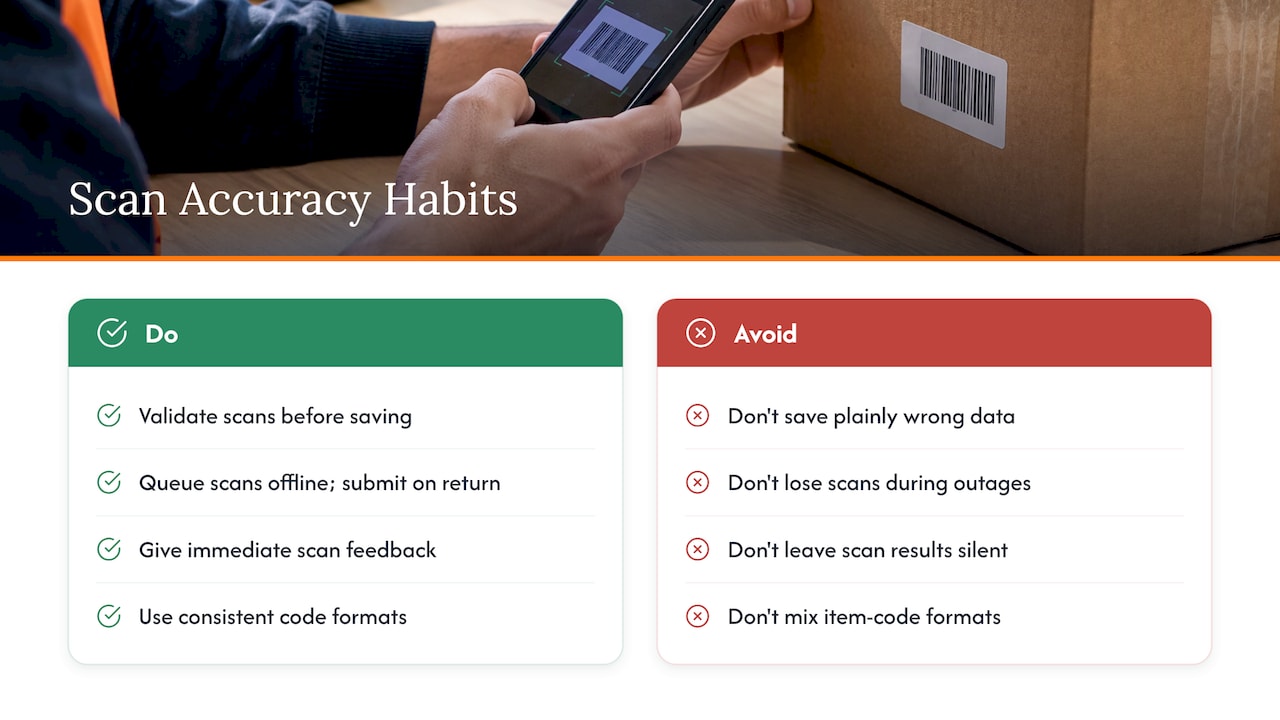
A fast scan that writes wrong data is worse than slow typing, because people trust it. Build four habits into the app from the start.
Check before saving. Open Pantry, a Singapore food wholesaler, describes a GS1-based scanning workflow where bad check digits, impossible dates and missing weights are blocked before anything is written to stock. Unknown barcodes are set aside to be identified later, and when a label fails, a supervisor PIN is needed to continue, which is logged. You can borrow the same logic at any scale: reject what is plainly wrong, queue what is unknown, and record who overrode a rule.
Plan for poor connections. BarcodeFYI recommends resilience patterns such as offline queuing with automatic submission once the connection returns, on-device feedback so users know a scan was accepted, retry with increasing delays, and supervisor override with an audit log. Storerooms, basements and lifts are classic dead spots, so this is not a luxury.
Give clear feedback. A scan should tell the worker immediately: accepted, already scanned, not recognised, wrong location. Silence leads to double scanning.
Keep codes consistent. Decide one format for item codes and location labels. Mixed formats are the most common cause of “unknown item” errors after launch.
Access controls and traceability
Every scan creates a record, and records are only useful if you know who made them. KEYENCE advises assigning permissions before connecting platforms, to avoid gaps in the audit trail. Decide up front:
- who can scan, who can adjust stock and who can approve a correction;
- which fields a scan can change and which it cannot;
- how long records are kept and who can see them.
A clear trail also helps when you document your process for staff, customers or partners. If you publish how your process works, it helps to know whether AI search tools can find and cite those pages, and a Claude visibility audit is one quick way to check.
Confidentiality matters here too. Stock levels, supplier prices and customer lists are business-sensitive, so ask any developer how your data will be handled before you share it.
What it costs, and how to keep it down
We do not quote figures here, because the price depends on your workflow, not on the word “barcode”. Three things move it most:
- How much already exists. A ready product costs less than an adapted one, and an adapted one costs less than a build from scratch.
- How many systems must be connected. Each link to accounting, e-commerce or a courier adds testing and upkeep.
- Hardware. If phones do the job, there is no scanner cost. If you need rugged handhelds and label printers, add them to the budget with their lifetime, not just their purchase price.
Whatever route you choose, ask for a clear scope in writing before development starts: what is included, what each scan will do, and what is out of scope. A fixed scope makes the cost predictable and keeps “just one more feature” from growing the bill.
A practical plan for your first scanning project
Here is the order we suggest, with where each step usually goes wrong.
- Write down the one task you want to fix. For example, “stock receiving takes two people half a day and the counts are often wrong.” The mistake is trying to digitise everything at once. We start with a workflow review and do not need a technical brief from you.
- Map what happens today. Who handles the item, where the code is written down, and where the number ends up. Gaps and double entry show you where a scan helps.
- Decide what each code means. Item, batch, location, person or asset. Agree the labels and who prints them.
- Choose the lightest route that works. Check whether a ready product covers the need, then an adapted one, and only then a custom app. This is the order we follow, so you pay for the simplest suitable solution.
- Choose the connection method. Use the table above: API or middleware first, and never write straight into a database.
- Pilot with one team or site. Run it alongside the old method for a short period and compare counts.
- Fix the exceptions, then roll out. Look at the scans that failed and why. Usually the cause is a label, a rule or a missing permission.
- Train briefly and review. A short session and a one-page guide are enough if the app gives clear feedback.
To see what a finished business app looks like before you decide, you can try our product demos.
Our view: start with the workflow, not the scanner
Most people who come to us ask for “a barcode app”. Very few of them need exactly that. What they need is a task that takes less time and goes wrong less often, and scanning is one way to get there.
That is why we begin with the workflow. We look at who does what, where the numbers are written, and where errors creep in. Then we tell you the simplest suitable route: a ready-made product, an existing one adapted to your process, or a custom app if nothing else fits. We would rather you pay for the cheapest solution that works than for a build you did not need.
We also think you should know the likely cost direction before development starts, and that your business information should stay confidential throughout. You should not need technical language to make a good decision, and you should not feel pressure to commit.
If a scan is going to drive stock, sales, attendance or check-in, the logic behind it deserves as much care as the camera. Get the rules right on one process first, and widening it later is straightforward.
Ronald
Talk to us about scanning in your workflow
FlowLab is a Singapore app development company that works with SMEs. We offer custom web apps, internal business tools, workflow automation and product customisation, as well as ready-to-use products including POSFlow, QueueFlow, EventFlow, PriceFlow, LeadsFlow and PresenceFlow. Our complimentary app fit review looks at your workflow, identifies the most economical route and clarifies likely costs before development begins.

If your scanning need is in retail or point of sale, see our retail app development page or POSFlow ↗. For anything else, start with a fit review ↗ and tell us the task you want to fix.
FAQ
Can I use my phone to scan barcodes for my business?
Yes. A modern phone camera can read common one-dimensional and two-dimensional codes, and the app does the rest: checking the code and saving the result to your records. This works well for light tasks such as stock checks, asset audits and event check-in. For high-volume receiving, a dedicated handheld scanner is faster and sturdier.
What is barcode scanner integration?
It is the link between the device that reads a code and the software that uses the result. The scanner or camera captures the code, the app checks it, and the data is sent to your stock, sales or accounting system. An API-based link or a middleware layer is generally safer than writing directly into another system’s database.
Do I need a custom app to add barcode scanning?
Not always. If a ready product already covers your process, it may be the cheapest route. If it nearly fits, adapting it can be enough. A custom build makes sense when your workflow is distinctive and nothing existing matches. A workflow review will show which of the three applies.
Can the app work when the Wi-Fi drops?
It can, if it is designed for it. A common pattern is to queue scans on the device and submit them automatically once the connection returns, with on-screen confirmation so staff know each scan was accepted. Ask for this in the scope if your storeroom has weak signal.
How long does it take to set up?
It depends on the workflow and the systems involved. A single process with one connection is far quicker than a multi-site rollout, which is why we suggest a pilot with one team or site first. We will give you a clear scope and the cost direction before development starts.
Sources
- KEYENCE: A Complete Guide to Barcode Scanner Integration
- Zebra: How to Properly Integrate Barcode Scanners and RFID Readers with Your ERP
- BarcodeFYI: Barcode System Architecture, From Scanner to Database
- BarcodeFYI: ERP Barcode Integration
- Stomp: FairPrice trials automated discounts, AI assistants
- Open Pantry: Warehouse Barcode Scanning for Food Wholesalers (Singapore)