
A client portal is a private, logged-in web space where your customers see the status of their work, find their documents, message your team and complete routine tasks without emailing or calling. For a Singapore SME, the features worth building first are few: a secure login, a live status view, a document area, one message thread per job and one-click actions for the requests you get most. Everything else can wait. We help SMEs work out that short list before any app is built, because a portal that does four things well gets used, and one that does fifteen things badly does not.
TL;DR
- A client portal (also called a customer portal) gives customers one secure place to check progress, get documents, communicate and act.
- Start with five features: secure login, status visibility, a document vault, one conversation per job, and one-click actions for your top three requests.
- Add role-based permissions and activity logs early, because client data needs protecting from day one.
- Many SMEs do not need a custom build. A ready-made or adapted app foundation is often the cheapest route; review your workflow first.
- Choose features by listing the questions clients ask you every week, not by copying a software vendor’s feature grid.
Table of Contents
- What a client portal is, and how it differs from a self-service portal
- Client portal features that matter most
- Client portal examples by type of business
- How self-service features reduce admin work
- Approvals deserve their own design
- Security basics for a client portal
- Connecting the portal to the tools you already use
- How to choose features for your own portal
- Ready-made, adapted or custom: which route fits?
- Promo: start with an app fit review
- Perspective: why we start with the workflow
- FAQ
- Sources
What a client portal is, and how it differs from a self-service portal
A client portal is a website or web app your customers log in to. It shows them information that belongs only to them: their orders, projects, invoices, files or appointments. It also lets them do things, such as approve a quote or upload a document.
You will see “client portal” and “customer portal” used for the same thing. The usual difference is emphasis:
- Client portal: built around ongoing work for a named client. Think accountants, agencies, contractors, consultants. The focus is shared files, approvals and progress.
- Customer self-service portal: built around repeat, standard requests from many customers. Think reordering, rebooking, downloading invoices, tracking a delivery. The focus is removing routine questions from your team’s inbox.
Most SMEs end up with a mix. A renovation contractor needs project updates and document sharing (client portal), and also wants customers to book a site visit without calling (self-service). The features below cover both.
Client portal features that matter most
Vendor pages list dozens of features. For a small team, these are the ones that decide whether clients actually log in.
1. Secure login and role-based permissions
Every client sees only their own records. Inside your team, not everyone should see everything either: an admin may see all clients, an account manager only their own, and finance only invoices. This is role-based access control, and it is easier to set up at the start than to bolt on later. Our practical guide to role-based access control explains how to define roles for a small team.
2. Status visibility
The most common reason clients call is “where are we on this?” A status view answers it without a person. It can be as simple as a stage label (received, in progress, awaiting your approval, completed) with a date. For a contractor, that might be a permit stage. For a food importer, it might be documentation progress. For a retailer, an order moving from packed to delivered.
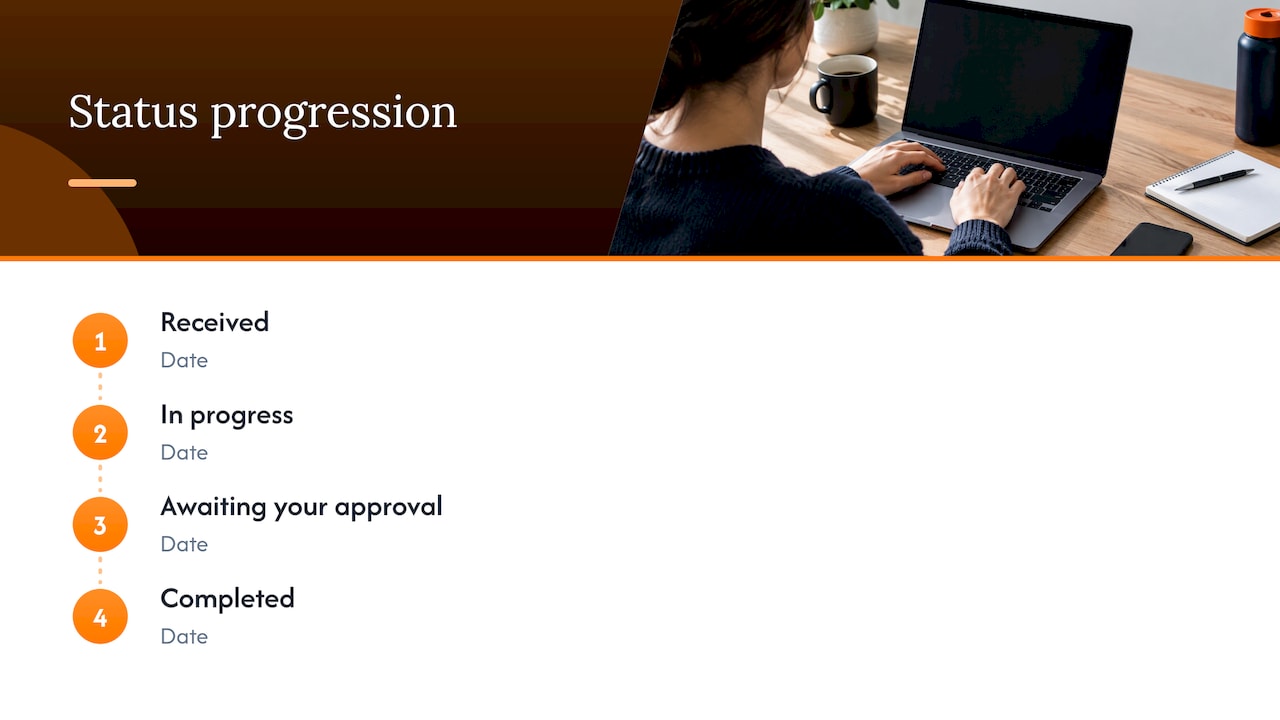
The test is whether a client can answer “what happens next, and is it waiting on me or on you?” in five seconds.
3. A document vault
Quotes, contracts, invoices, certificates, reports and uploaded files should sit in one place, searchable by date and type. Two details matter more than they seem:
- Two-way upload. Clients send you documents too. A request-and-upload flow beats attachments buried in email.
- Version clarity. The client should always see which file is the latest signed one.
A portal built around assessments, such as this DISC management portal, shows the same pattern in a different field: administrators distribute items, track progress and manage results from one dashboard.
4. One conversation per job
Messages should attach to the job, order or project they concern, not float in a general inbox. When a staff member leaves, the next person opens the job and sees the full history. This matters in Singapore, where many clients already message by WhatsApp. A portal thread has to beat that habit by keeping the history together, tied to the record and visible to the right colleagues.
5. One-click actions for the top three requests
List the three things clients ask you most often. Typical candidates:
- Approve a quote or proposal
- Reschedule or book an appointment
- Download an invoice or pay it
Turn each into a single button with a confirmation receipt. An approval that takes one click and leaves a time-stamped record replaces a chain of emails. If you take online payments, our comparison of payment gateways for Singapore SMEs covers the options.
6. Notifications
An email or message when something needs the client’s attention (a document to sign, a quote to approve) brings them back to the portal. Keep notifications to events that need action, or clients will mute them.
7. Activity log
A record of who viewed, downloaded or approved what, and when. It settles disputes quickly and is useful when you handle sensitive files.
8. Branding
Your logo, colours and domain make the portal feel like part of your business. It helps trust, but it is a finishing touch, not a reason to delay launch.
Client portal examples by type of business
The same features combine differently depending on the work. These are workflow patterns, not named customers.
| Business | What the client sees | Key actions |
|---|---|---|
| Accounting or corporate services firm | Filing status, document requests, signed documents | Upload records, e-sign, approve fees |
| Renovation or fit-out contractor | Project stage, drawings, variation orders | Approve variations, book inspections |
| Marketing or design agency | Deliverables awaiting review, timelines | Approve designs, leave comments |
| Distributor or wholesaler | Orders, delivery status, invoices, price lists | Reorder, download statements |
| Training or events company | Registrations, attendance, certificates | Register, reschedule, download certificate |
| Clinic or service business | Appointments, queue status, receipts | Book, cancel, view receipts |
Notice what each row has in common: one status, one document area, and a small number of actions. None needs a long feature list.
How self-service features reduce admin work
Self-service features pay off in the places where your team repeats itself. Each time a client can find an invoice, check an order or confirm an appointment alone, a staff member avoids a reply. Tally one week of incoming emails, calls and messages and sort them into three groups: “where is my…”, “can you send me…” and “can you confirm…”. Those three groups are usually the portal’s first three features.
The saving is also in accuracy. When a client enters their own details or uploads their own file, you avoid retyping, and a retyped number is a mistake waiting to happen. If your process is still on paper or spreadsheets, our guide to moving from paper to a digital workflow shows how to prepare the process before it goes into any portal.
Approvals deserve their own design
Many portals exist mainly to collect approvals: a quote, a design, a variation, a leave request, a purchase. If approvals are your main use, design them first. Decide who can approve, what happens when they do not respond, and what record is kept. Our guide to approval workflow design walks through this for SMEs.
Security basics for a client portal
A portal holds client information, so security is part of the feature list, not an extra. Start with these basics:
- Strong login. Unique accounts per user and, where the data is sensitive, a second verification step.
- Least access. Each person sees only what their role needs.
- Encrypted connections and sensible storage for files.
- Logs of access and changes.
- A plan for leavers. When a client contact or staff member leaves, their access ends the same day.
In Singapore, the Personal Data Protection Act requires organisations to make reasonable security arrangements to protect the personal data they hold; the regulator, the PDPC, explains the PDPA and its obligations. If your portal stores names, contact details, identification numbers or similar, treat this as a design requirement. Our security guide for small business apps turns it into a practical checklist.
Connecting the portal to the tools you already use
A portal that nobody updates is worse than none. Status and documents should flow in from the systems where your team already works: accounting, point of sale, scheduling or lead tracking. If you use Xero, see our overview of Xero integration options for what can be connected. If invoicing and stock sit in separate places, our note on inventory software and InvoiceNow is a useful companion.
The rule is simple: staff should update a record once, and the portal should show it. If staff must update two places, the portal will fall behind within weeks.
How to choose features for your own portal
Follow this order.
- List client questions. For two weeks, note every question clients ask by email, phone or chat.
- Group them. Most fall into status, documents, messages and a few repeat actions.
- Pick the top three actions. These become the one-click buttons.
- Map who sees what. Clients, account managers, finance, admin.
- Name the systems the portal must read from. Accounting, ordering, scheduling.
- Launch small. Invite a handful of friendly clients, then add features that real use asks for.
If the core four or five features are not right, adding more will not help adoption; it will bury it. Put more effort into the three actions clients use most than into a long menu.
Ready-made, adapted or custom: which route fits?
This is the decision that most affects cost. There are three routes:
- Ready-made product. Lowest entry cost and fastest start. Best when your process looks like a common one, such as point of sale, queues, event registration, lead tracking or attendance.
- Adapted product. An existing app foundation is changed to match your workflow: your fields, your approval steps, your branding.
- Custom build. Built from scratch around a process that nothing existing fits, or where the portal is central to how you win business.
Before choosing, assess four things: how standard your process is, how many people and systems touch it, how sensitive the data is, and who will own it afterwards. Research on Singapore’s JTC eCREAM project concluded that technology only delivers when the underlying business process changes too, and recommended a focused point of contact and a user-friendly interface even when the back end is complex, as set out in the case study of JTC’s e-government work. The lesson for an SME is to fix the workflow first, then choose the route.
Our starting point is the same: we review the workflow before we recommend anything, and we look at ready-made and adapted options before proposing a custom build.
Promo: start with an app fit review
FlowLab is a Singapore app development company that works with SMEs. We begin by understanding your operational challenge, then recommend the simplest suitable route: a ready-made product, an adapted one, or a custom web app or internal tool. Our complimentary app fit review helps identify the most economical solution and clarifies likely costs before development begins, with no technical brief needed and confidentiality respected throughout.

If your portal need overlaps with orders and payments, see POSFlow. If it is about registrations and attendance, look at EventFlow. For something more specific, our custom software development service for Singapore SMEs covers bespoke builds, and you can explore our product demos to see how our apps behave. To talk through your own portal, start from the FlowLab home page ↗
Perspective: why we start with the workflow
Most portal projects we hear about start with a feature list. We think that is backwards. A client portal is a workflow with a login on the front, so the useful first question is not “what can a portal do?” but “which three questions do your clients ask every week, and who answers them today?”
That is why we begin with a workflow-first review and recommend a ready or adapted product before a custom build. For many SMEs the simplest suitable solution is an existing foundation, adjusted to how they work. Custom building makes sense when the process is genuinely your own, and then we scope it clearly so you know the direction of cost early.
We also keep the language plain. You should not need to write a technical brief or learn a vocabulary to get a portal that your clients will actually open. Your processes and client data stay confidential throughout.
Ronald
FAQ
What is the difference between a client portal and a customer portal?
The two terms overlap heavily. “Client portal” usually describes ongoing, project-based work for named clients, such as a firm sharing files and approvals. “Customer portal” usually describes self-service for many buyers, such as tracking orders and downloading invoices. Many SMEs need a bit of both.
How many features does a small business portal need at launch?
Five is a sound starting point: secure login, status visibility, a document area, a message thread per job, and one-click actions for the three most common requests. Add notifications, activity logs and branding as use grows. More features at launch usually reduce adoption rather than improve it.
Do we need a custom portal, or can we adapt an existing app?
If your process resembles a common one, an adapted existing foundation is usually cheaper and quicker. A custom build suits processes that are specific to your business. A workflow review shows which applies, and ours is complimentary.
How do we keep client data safe in a portal?
Use unique logins, give each role only the access it needs, keep activity logs and remove access when people leave. Singapore’s PDPA expects reasonable security arrangements for personal data you hold, so build these in from the start.
Sources
- PDPC: Personal Data Protection Act overview
- Public Private People Partnerships for e-government: JTC eCREAM case study
- Meet Our New DISC Portal