
The best Airtable automations are the dull ones: a lead gets an owner, a late invoice gets a chase task, a deadline gets a reminder. Pick one workflow that currently depends on someone remembering, automate that, and add the next only once the first runs cleanly. If you are not sure which workflow to start with, or whether Airtable is the right home for it, a short review of how the work actually moves will tell you before you spend anything.
This guide gives nine ideas with the trigger, the action and the trap in each. It is written for owners and managers who run operations without a developer on staff.
TL;DR
- An Airtable automation is a trigger (something happens) plus one or more actions (something is done), so every idea below follows that pattern.
- Start with one painful workflow and two or three automations, not a dozen.
- Simple status, deadline and routing automations save the most time, and they are the easiest to get right.
- Check the monthly run limits of your plan before you rely on a workflow that fires hundreds of times a day.
- When a workflow outgrows a spreadsheet-style base, a ready-made or adapted app can be the cheaper route than a long build. Our complimentary app fit review helps you see which.
Table of Contents
- How an Airtable automation works
- Nine Airtable automation ideas
- The order to build them in
- Trigger rules that catch people out
- Check plan limits before you count on a workflow
- When Airtable is the right home, and when an app is
- How FlowLab helps
- Our perspective
- FAQ
- Sources
How an Airtable automation works
Airtable calls a database a “base”. An automation inside it listens for a trigger and then runs actions. According to Airtable’s Help Center, triggers include a record being created or updated, a record matching a condition, a form being submitted, a scheduled time, a webhook arriving or a button being clicked. Actions can create, update, find or delete records, run scripts, send emails, and push data to tools such as Slack, Microsoft Teams, Jira, Salesforce, GitHub and Twilio SMS.
One limit is worth knowing early: automations cannot create or change views or interface pages. They move data and send messages. They do not redesign the screens your team looks at.
Two features come up repeatedly in the ideas below:
- Find records: an action that returns a list of records, for example every task due in two days.
- Repeating groups: a block that runs the same actions once for each record in that list. Airtable’s guide to repeating groups shows it used for batch reminder emails and for compiling each team member’s weekly tasks into one message.
Nine Airtable automation ideas
1. Route new leads to the right person
Trigger: a web form is submitted. Actions: set the lead’s “Assigned To” field by service type, create a follow-up task due the next day linked to the lead, and message the owner on Slack.
An autoflowguide.com 2026 guide describes this pattern with a 24-hour follow-up task. It fits any business where enquiries arrive by form and then sit in a shared inbox.
Where it goes wrong: the routing rule is only as good as the service categories on your form. If two people think a lead is theirs, or nobody does, the automation will faithfully repeat the confusion.
2. Notify people when a status changes
Trigger: a record’s status changes to something like “Ready for Review” or “Approved”. Action: email the client or message the next person in the chain.
A workflow-sequencing guide by Randy Wattilete suggests building this one first, because it replaces the five to ten manual pings a day that many teams send. It is also the lowest-risk automation: if it misfires, someone gets an extra message.
3. Send a daily deadline alert
Trigger: a scheduled time, for example 9am each weekday. Actions: find tasks due within two days that are not complete, then email a summary to the project manager and post a reminder in Slack.
Compare the Cloud’s UK small-business guide lays out exactly this alert inside a base with Projects, Tasks and Team Members tables. The Wattilete guide reports that the first daily alert on his example team surfaced 23 overdue items nobody knew about. That is a typical result: the value is often in seeing what was already late.
4. Chase overdue invoices
Trigger: an invoice record where days overdue is more than seven and status is “Sent”. Action: create a chase task linked to the customer.
One timing detail from a startup operations guide: date formulas such as TODAY refresh about every 15 minutes while a base is open and about hourly when it is closed. The task may therefore appear shortly after the invoice tips over the line, not at midnight. For a seven-day chase, that makes no practical difference, but do not promise a customer a message at an exact minute.
5. Build an onboarding checklist for each new client
Trigger: a client record is created or its status becomes “Active”. Actions: create several pre-linked task records, such as welcome email, kickoff call, portal link and intake form, with staggered due dates.
This is also described in the autoflowguide.com small-business guide. It suits agencies, consultancies, tuition centres and any business where every new customer needs the same six steps in the same order.
6. Alert the on-call person to an emergency
Trigger: a task record matches Category = “Emergency” and Done is unchecked. Action: email or message the on-call person.
The same startup guide gives a useful warning. If the trigger reads a field filled in by an AI step, the automation can fire before that field has any content. Base the trigger on a plain field such as Category, then test with a dummy task and time how long the alert takes to arrive.
7. Send scheduled digests and reminders
Trigger: a scheduled time, such as 4pm every Friday or the first of the month. Actions: find the relevant records, then use a repeating group to send one tailored message per record.
Typical uses are RSVP reminders, a weekly summary of open projects, overdue tasks and unpaid invoices, or a personal task list for each team member. One practical note from Airtable’s repeating-groups page: once a repeating group is added, the Test automation button is disabled, so you must test each step on its own. Allow time for that.
If email is the centre of your operations, our piece on email automation for operations covers the wider picture.
8. Turn maintenance requests into dispatched jobs
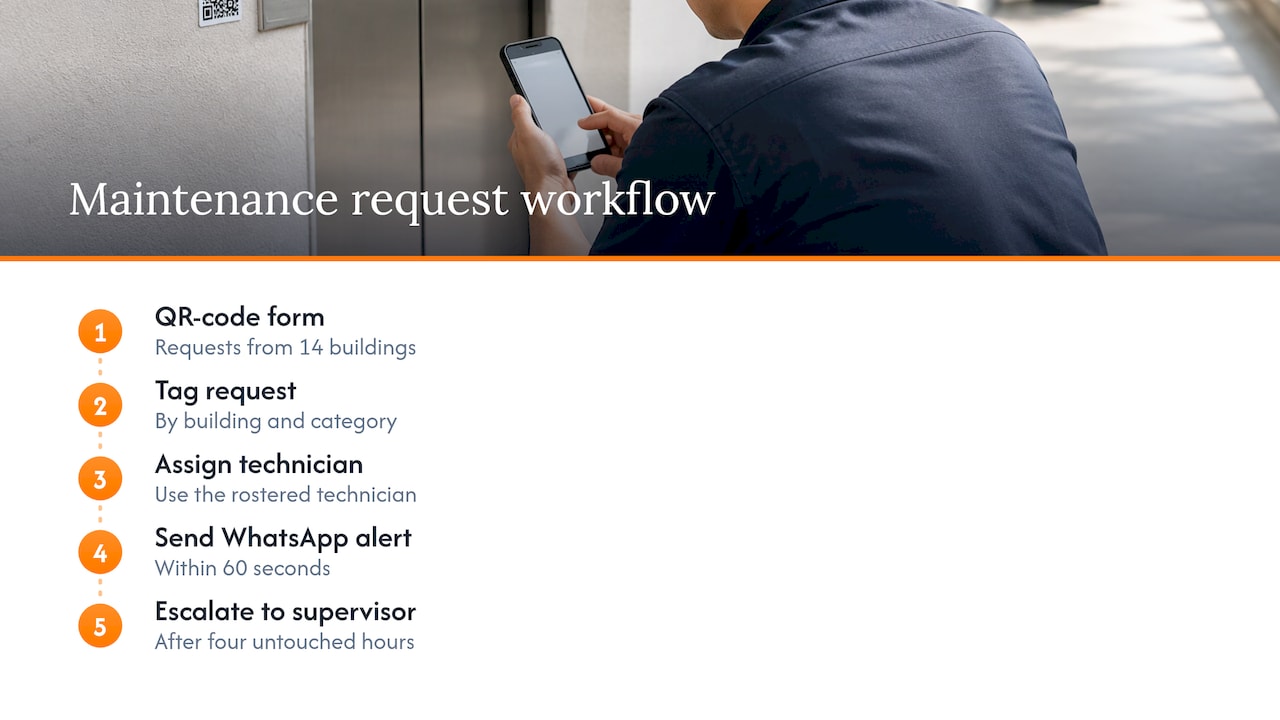
A Singapore example shows how far a handful of simple pieces can go. A Digital Perpetual case study describes a facilities management firm that replaced ad-hoc phone calls with a QR-code form in 14 buildings. An Airtable automation tagged each submission by building and category and assigned the rostered technician. A WhatsApp connector then messaged the technician within 60 seconds. A shared view turned requests red and escalated them to a supervisor after four hours untouched.
The firm piloted in two buildings, adjusted in week 3 and rolled out to all 14 by week 5. The reported total was S$3,600 for the Airtable Pro plan, the WhatsApp connector’s monthly fee, printed signage and a contractor day rate, plus a S$180 tablet for the office board. The case study says the firm avoided a full facilities platform whose shortlisted quotes ran 4 to 6 months and above S$15,000 a year in licence fees.
The lesson is not “use these exact tools”. It is that a form, a routing rule, a message and a status board that staff already understand can solve a problem that looks like it needs enterprise software.
9. Sync new leads to your CRM
Trigger: a new lead with Status = “New”. Actions: check for an empty email, check for duplicates, create or update the contact in the CRM, write the CRM ID and Status = “Synced” back to Airtable, and notify Slack on any error.
An n8n blueprint from HeyNeuron follows this shape and advises pausing about 200 milliseconds between Airtable operations in loops to stay under the 5 requests per second API limit. This is the idea where owners most often discover they need an integration layer, not just an automation. Our comparison of n8n and Zapier for SMEs explains how those connectors are charged.
The order to build them in
Most failed automation projects fail because too much was switched on at once. Three sources agree on the remedy.
- Choose one painful workflow. McCary Group suggests a lead tracker with inconsistent follow-up, a renewal sheet with missed dates, an inventory sheet with manual reorder checks, or a scattered onboarding checklist.
- Write down trigger, action and reason. If you cannot state all three in one sentence, the automation is not ready.
- Build two or three, not twelve. Status notifications first, then daily overdue alerts, then routing. Wattilete’s argument is that each one earns the next, and that any AI drafting should come last.
- Run each live for a week. Autoflowguide’s no-code workflow guide warns that each automation depends on the previous step’s data being clean, and that rushing creates cascading errors that are harder to debug than a sequential build.
Trigger rules that catch people out
The “When record matches conditions” trigger behaves differently from what most people expect. Airtable’s help page for it says records that already match the conditions do not fire it. A record must change into the matching state. It also runs again every time a record re-enters that state.
For anything that should happen once, such as sending a welcome email, trigger on a single field that changes once, for example a dedicated “Ready” checkbox. Avoid multi-field or multiple-select conditions for one-time actions.
A second housekeeping point from the same Airtable automations page: turning an automation off does not free a slot in the per-base limit. Only deleting it does.
Check plan limits before you count on a workflow
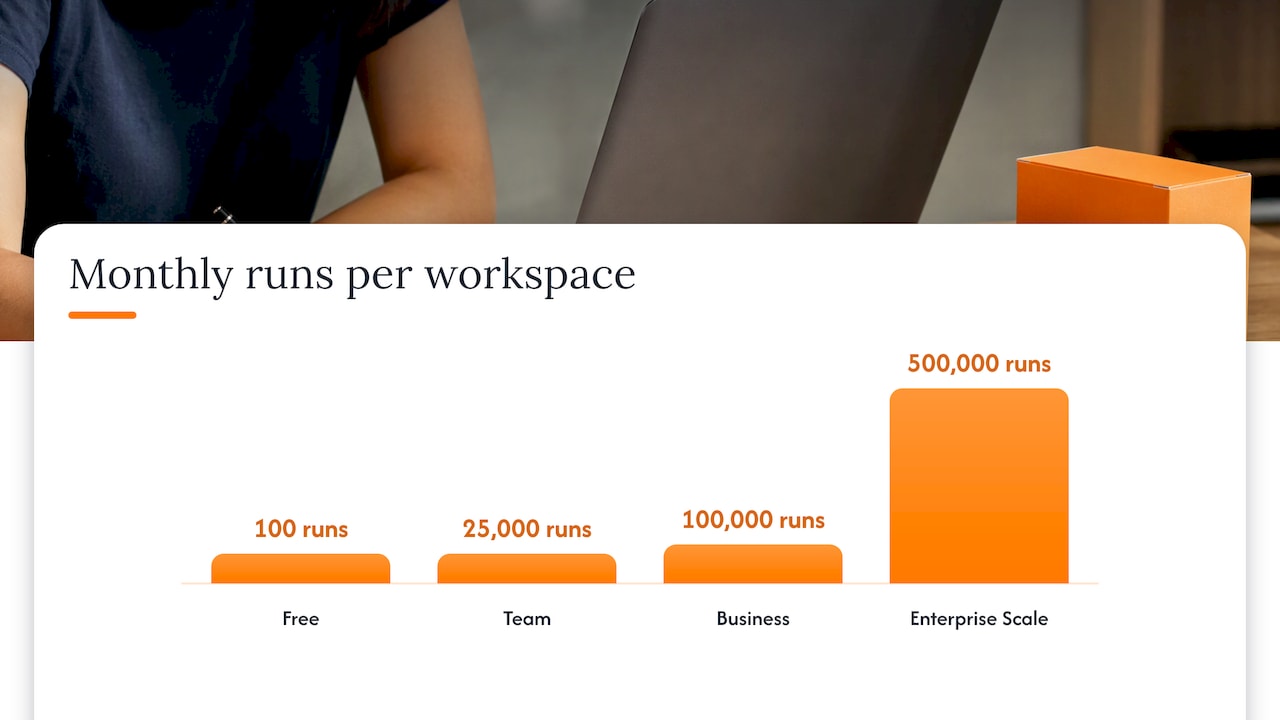
Automations are metered. Per Airtable’s plan table, monthly runs per workspace are 100 on Free, 25,000 on Team, 100,000 on Business and 500,000 on Enterprise Scale. Unique automations per base are 75, 100, 150 and 200 respectively. On the Free plan the “Run a script” action is unavailable, and “Send email” can only reach collaborators on the base, not outside addresses.
For a sense of scale: a daily alert uses roughly 30 runs a month, but a form that fires on every customer enquiry can pass 100 runs in a week. A repeating group counts toward your usage in its own way, so test the volume on a pilot before you widen it.
Cost matters too. A SaaSRat review verified in May 2026 listed the Team plan at US$20 per user per month billed annually. Seat prices move, so check Airtable’s pricing page for the figure you will actually pay, and multiply by the number of people who need an account.
When Airtable is the right home, and when an app is
An Airtable base suits a team that is comfortable maintaining its own structure. The ideas above are well within what a careful manager can set up. Some workflows, however, are really a standalone job that happens to be living in a spreadsheet-style tool. Signs of this:
- Customers or staff need their own simple screen, such as a queue ticket, a registration page or a clock-in view, and an external login is a separate add-on cost.
- The same data is touched by dozens of people a day, and each needs a screen showing only their part.
- The automations have grown into a chain of five or six steps across several tools, and nobody is sure which one broke last Tuesday.
- Money moves through it, as with sales, pricing or payments.
In these cases, the cheapest route is often a ready-made product, or one adapted to your process, instead of a bespoke build. Our comparison of Airtable and Smartsheet for SMEs looks at when a bespoke app costs less over time, and our Airtable and Notion piece covers the point at which thousands of linked records change the equation.
How FlowLab helps
We are a Singapore app development company for SMEs. We start with a workflow-first review: we look at how the work moves and where it stalls, before suggesting anything. We then recommend a ready-made product, an adapted solution or a custom application, whichever is the simplest suitable route. Our complimentary app fit review clarifies likely costs before any development begins, and your information stays confidential.
Many of the ideas above map onto products we already have:
- Lead routing and follow-up: LeadsFlow, built so every enquiry has an owner and a next move.
- Queues and walk-in flow: QueueFlow.
- Registrations and attendance at events: EventFlow.
- Staff attendance: PresenceFlow.
- Sales to payment: POSFlow.
When none of these fit, our workflow automation and custom builds are scoped to your process, and you do not need to bring a technical brief.

You can see how the products behave on our demo page before deciding anything.
Our perspective
Most owners who ask us about automation ideas do not need more ideas. They need to know which one workflow is costing them the most, and what the lowest-entry way to fix it is.
That is why we begin with the workflow, not the tool. Sometimes the answer is a simple automation on something you already use. Sometimes it is a product we have already built, adapted to your process. Occasionally it is a custom application. We would rather tell you which one is the simplest suitable solution, with a clear scope and an early view of cost, than sell you the biggest thing we can build.
The Singapore facilities example above is a good reminder: the winning move was a small set of familiar pieces, not a heavyweight platform. We take the same view. Start small, make it work, and let the next step earn its place.
Ronald
FAQ
What are good Airtable automation ideas for a small business?
The most useful are lead routing, status-change notifications, daily deadline alerts, overdue-invoice chase tasks and client onboarding checklists. Each has a clear trigger, a clear action and a clear business reason. Start with one or two and add more once they run reliably.
Can Airtable send emails and Slack messages automatically?
Yes. Email and Slack are among the built-in actions, and scheduled triggers can send reminders or digests on a timetable. On the Free plan, emails can only reach collaborators on the base, so outside recipients need a paid plan.
How many automations should I build first?
Two or three. Pick the workflow that causes the most missed follow-ups or chasing, and give each automation one trigger and one reason to exist. Run them live for a week before you add more, so that errors are easy to trace.
Do I need a developer to set these up?
Simple triggers and actions can be set up without one. Scripts, API calls and multi-tool chains are harder to maintain. If your workflow is heading that way, talk to us about a fit review to see whether a ready-made or adapted app would be simpler.
Sources
- Getting started with Airtable automations, Airtable Help Center
- Repeating groups of Airtable automation actions, Airtable Help Center
- Airtable automation trigger: When record matches conditions, Airtable Help Center
- Best Airtable Automations for Small Business in 2026, autoflowguide.com
- How to Build a No-Code Business Workflow, autoflowguide.com
- Airtable Automations Guide for Small Businesses, Compare the Cloud
- How Did a Singapore Facilities Management Firm Cut Maintenance Response Time, Digital Perpetual
- Airtable for Startups: Build an AI-Assisted Operations Base
- n8n Airtable Automation: 4 Workflow Blueprints, HeyNeuron
- Replace Spreadsheet Chaos With Airtable or SmartSuite, McCary Group
- Airtable workflow automation: build these 5 first, Randy Wattilete
- Airtable Review 2026: Pricing Plans, SaaSRat